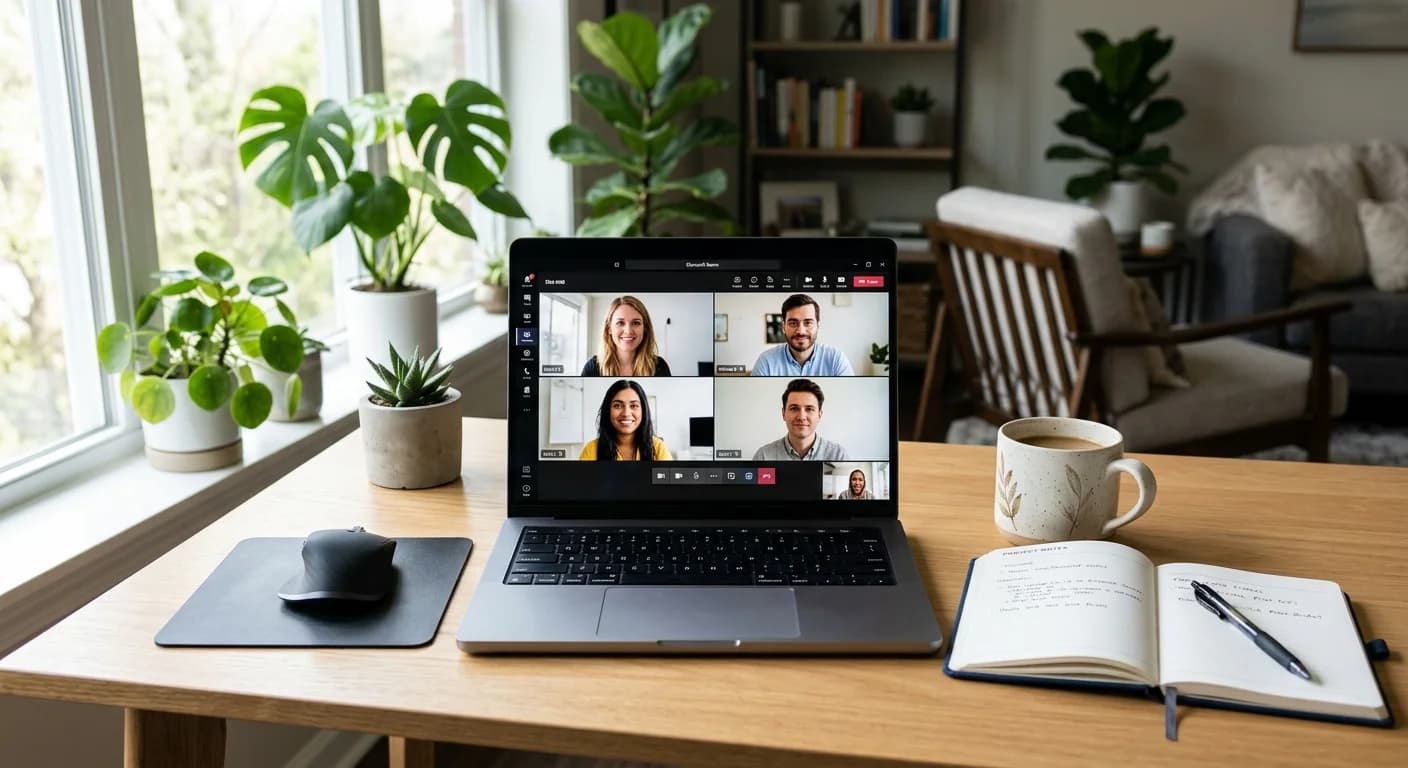
The landscape of professional hiring has shifted significantly toward video conferencing. Google Meet has become a staple for recruiters and hiring managers due to its accessibility and integration with corporate calendars. However, the pressure of a live video call remains high. Job seekers are increasingly looking for ways to manage this stress, leading many to ask how to use ai during google meet interview settings effectively.
Using AI in an interview is not about letting a machine speak for you. Instead, it is about using advanced technology to organize your thoughts, recall specific data points from your resume, and stay on track with your prepared narratives. This guide provides a technical and tactical roadmap for integrating AI support into your next Google Meet session without compromising your professional integrity.
The Evolution of the Video Interview
Video interviews were once a secondary screening tool, often reserved for remote candidates. Today, they are frequently the primary method for multiple rounds of hiring. While Google Meet offers a clean interface, the format itself creates unique challenges: maintaining eye contact with a lens, managing technical glitches, and trying to remember complex project details while staring at your own reflection.
AI tools have evolved to meet these challenges. By acting as a digital notepad and organizational assistant, AI helps bridge the gap between what you know and what you can articulately express under pressure. When you understand how to use ai during google meet interview stages, you transform a high-stress evaluation into a structured conversation.
Why Use AI During a Google Meet Interview?
Integrating an AI assistant into your workflow provides three core benefits: structure, confidence, and clarity.
1. Maintaining Structure with the STAR Method
When answering behavioral questions, it is easy to ramble. An AI assistant can provide real-time prompts to ensure you follow the Situation, Task, Action, and Result (STAR) framework. This keeps your answers concise and impactful.
2. Boosting Confidence
Knowing you have a desktop interview copilot running alongside your call acts as a safety net. This reduces the cognitive load of trying to memorize every possible answer, allowing your natural personality to shine through.
3. Ensuring Clarity and Data Accuracy
If you are asked about specific growth percentages or technical stack versions from a project three years ago, AI can help you surface those facts instantly from your uploaded documents. This prevents the awkward "I'll have to get back to you on that" response.
Success depends on a seamless technical setup. You do not want to be fumbling with windows or losing audio while the interviewer is speaking. Follow these steps to create a professional environment.
Step 1: Managing Screen Real Estate and Window Layouts
One of the biggest hurdles in a Google Meet interview is window management. If you are constantly clicking between tabs, your eyes will dart across the screen, making it obvious you are distracted.
To solve this, use a split-screen layout or a dedicated overlay. Position your Google Meet window in the top center of your screen, directly below your webcam. This ensures that when you look at the interviewer, you are also looking toward the camera. Place your AI interface in a narrow window immediately adjacent to the Google Meet window.
Using a dedicated desktop interview copilot is often superior to a browser tab because it can stay on top of other windows without requiring you to switch focus. This minimizes the risk of accidentally closing your interview tab or losing sight of the interviewer's facial expressions.
Step 2: Ensuring Audio Compatibility and Permissions
For an AI to provide real-time support, it needs to "hear" the conversation. Most browser-based AI tools struggle with this because of security permissions within Chrome or Firefox.
When setting up your AI interview copilot, ensure your system audio is correctly routed. You may need to grant the application permission to access your microphone and system output. Always perform a test call in Google Meet before the actual interview to confirm that your hardware (headset and mic) is working in tandem with the AI software. Avoid using external speakers, as the feedback loop can confuse the AI's transcription capabilities.
Step 3: Using a Desktop Interview Copilot for Seamless Workflow
A browser extension can be clunky. A standalone desktop application provides a more stable environment. This setup allows the AI to run as a lightweight layer. It can transcribe the interviewer's question in real-time and offer bulleted talking points based on your pre-uploaded resume and job description.
According to Google Meet's official support documentation, using third-party hardware or software for accessibility is common, but for interview purposes, the key is ensuring the tool does not interfere with the bandwidth required for a stable video connection.
Best Practices for Using AI Discreetly
Knowing how to use ai during google meet interview calls is only half the battle; you must also use it with professional etiquette. The goal is to enhance your performance, not to appear like a robot reading from a script.
- Maintain Eye Contact: Always look at the camera lens, not the AI suggestions. Use the AI only for quick glances to verify a date or a specific keyword.
- Natural Pacing: Do not start speaking the millisecond the interviewer finishes their question. Take a breath, glance at your talking points, and then respond. This mimics natural human thought processes.
- Avoid Verbatim Reading: AI is there to provide "anchors," not full sentences. If you read a generated paragraph word-for-word, your tone will become monotonic, and the interviewer will likely sense a lack of authenticity.
- Keyboard Silence: If your AI tool requires manual input, use a quiet keyboard or a laptop with dampened keys. The sound of frantic typing during a Google Meet call is a major distraction.
The Importance of Pre-Interview Prep: Using AI Mock Interviews
Real-time support is most effective when it is a supplement to, not a replacement for, preparation. You should never use an AI tool for the first time during a live high-stakes interview.
Engaging in mock interview practice allows you to get used to the visual layout of having an AI assistant on screen. It helps you calibrate the speed at which you can read prompts while maintaining a conversational flow. Practice sessions also help you identify which types of questions you struggle with most, allowing you to prime the AI with specific data for those difficult moments.
Research from the Harvard Business Review emphasizes that preparation in the digital age requires mastering the medium as much as the message. Practicing with AI tools ensures that the technology becomes an invisible extension of your skills rather than a visible crutch.
Final Thoughts: Leveraging Technology to Show Your Best Self
Using AI during a Google Meet interview is a strategic choice for the modern professional. When implemented correctly, it provides a structured support system that allows you to focus on building a rapport with your interviewer rather than panicking over forgotten details. By mastering your screen real estate, ensuring technical compatibility, and practicing your delivery, you can use these tools to present the most organized and confident version of yourself.
Ready to see how a digital assistant can change your interview game? Download the CoPrep desktop app today to test your Google Meet setup and conduct a mock interview practice session before your next big opportunity.
FAQ: How to Use AI During a Google Meet Interview
Is it okay to use AI during a job interview?
While there is no universal rule, using AI as an organizational tool or a digital notepad is generally acceptable, much like having paper notes on your desk. However, you should never use AI to generate answers verbatim or to deceive the interviewer about your actual knowledge and skills. Focus on using it for real-time coaching and memory prompts.
How do I set up my screen for a Google Meet interview with AI?
For the best results, position your Google Meet window at the top center of your monitor. Place your AI assistant window directly to the left or right of the meeting window. This minimizes eye movement and helps you maintain the appearance of looking at the camera while you glance at your notes.
Will the interviewer know if I am using an AI assistant?
If you use a desktop interview copilot that runs locally on your machine, it does not share your screen or notify other participants in the Google Meet call. However, if you read directly from the screen without looking at the camera, or if your eyes are constantly darting away, the interviewer may notice you are distracted.
Can AI help me answer technical coding questions in real-time?
AI can provide reminders of syntax, logic structures, or specific library functions. However, in a live coding interview where you are sharing your screen, you must be extremely careful. Most technical interviewers want to see your problem-solving process, not your ability to query an AI. Use AI to prepare for these sessions beforehand rather than relying on it to write code during the call.