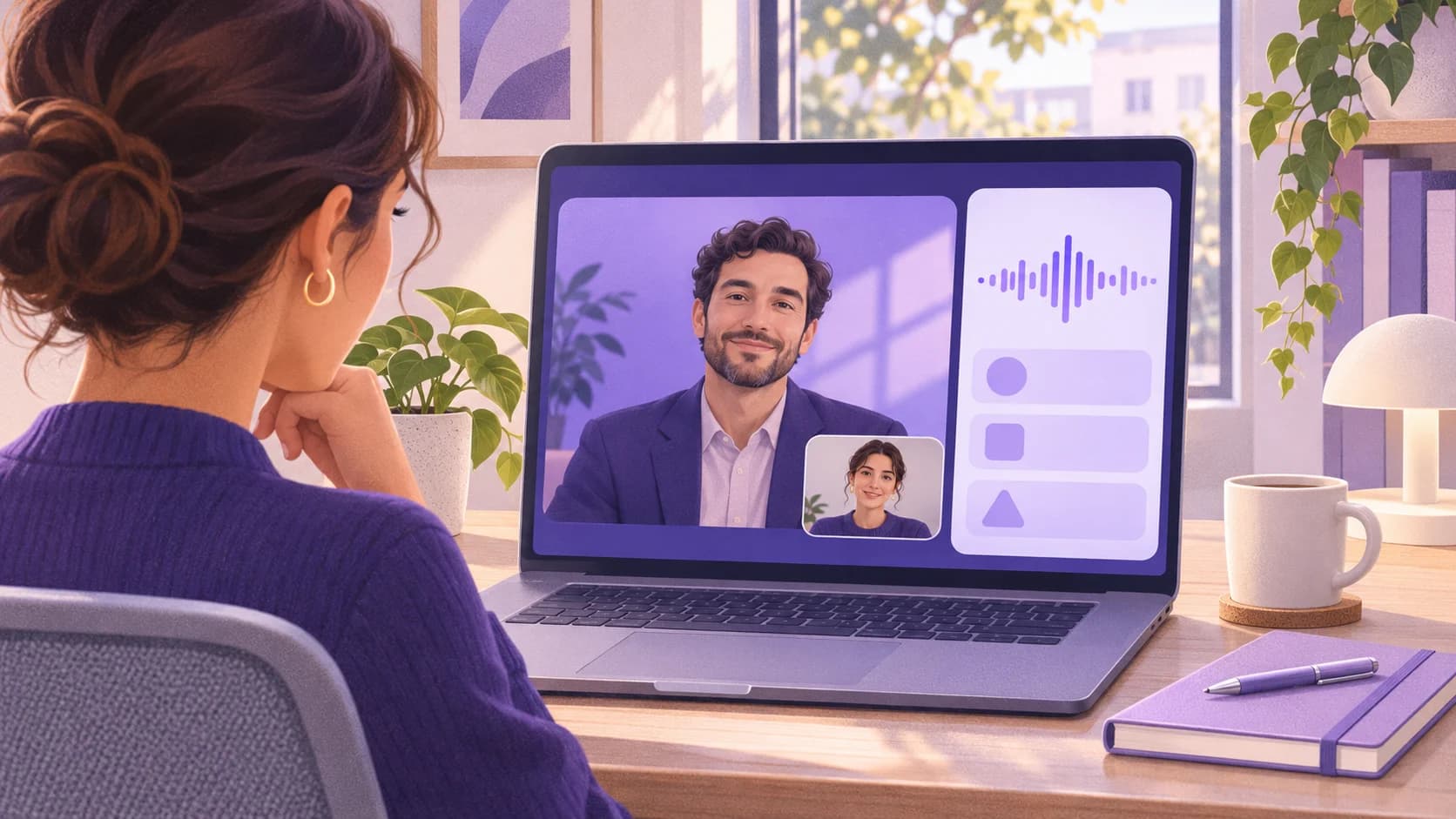
Your recruiter sends a Microsoft Teams link. You’ve prepared a few stories from your résumé, but you still have to listen closely, catch every part of the question, and decide which example fits while someone is waiting for your answer.
CoPrep’s Interview Assistant runs alongside Teams. It transcribes spoken questions and suggests talking points based on your résumé and the role. This guide walks you through setting up both apps, checking that CoPrep can hear the interviewer, and using an answer outline without losing your train of thought. Use live assistance only when the interviewer permits it. CoPrep Interview Assistant
1. Choose how you’ll join Teams
If the invitation lets you join on the web, open the meeting in Chrome and select Continue on this browser. Keep Teams in one tab and CoPrep in another. This gives CoPrep a specific tab to listen to.
If the interviewer requires the Teams desktop app, install and connect the CoPrep desktop app before interview day. Rehearse with both desktop apps so you can confirm that CoPrep receives the interviewer’s audio in that setup. Some organizations require you to sign in or verify your email before joining. Microsoft’s guide to joining Teams meetings · CoPrep setup guides
2. Set up the interview in CoPrep
Open Interview Assistant in CoPrep and select the browser or desktop experience. Add the job title, company, interview round, and résumé you applied with. Paste the job description and use Session Notes to tell the assistant what to focus on.
For a project manager interview, a useful note might be: “Keep behavioral suggestions to three bullets. Use examples from my résumé that show how I managed deadlines or resolved disagreements.” That gives CoPrep a clearer starting point when the interviewer asks a broad question. Open Interview Assistant
3. Check your camera and sound in Teams
Open the meeting’s pre-join screen a few minutes early. Choose Computer audio, check which microphone and speaker Teams selected, and look at the camera preview. If you’re wearing a headset, make sure Teams is using it for both input and output.
The Teams desktop app also offers Make a test call in Settings → Devices, where available. This checks your Teams devices. Use a separate practice meeting with a friend to confirm that CoPrep can hear someone speaking on the other end. Microsoft Teams audio settings · Microsoft’s test call instructions
4. Connect Teams audio to CoPrep
For the browser setup:
- In CoPrep, open the prompt to share your interview tab.
- Choose the Chrome tab with the Teams meeting and turn on Also share tab audio.
- Select Share, then Start Interview Assistant.
- In your practice call, ask the other person to say a full question. Check that it appears under Interviewer transcription.
If you can hear the other person in Teams but nothing appears in CoPrep, share the Teams tab again and check the audio box. If Teams opened in its desktop app, switch to the CoPrep desktop setup or reopen the meeting in Chrome if the invite allows it. CoPrep setup and troubleshooting
5. Use the outline to organize your answer
With Auto Answer enabled, CoPrep can suggest talking points when it detects a question. You can also type a prompt manually if a question appears in the Teams chat or the transcript misses it. CoPrep’s live answer controls
Say the interviewer asks, “Tell me about a time you had to push back on a deadline. What did you propose instead?” The transcript lets you catch the second part. An outline might remind you to explain what made the deadline unrealistic, name the alternative you offered, and describe what happened next. Pick a real example and tell it in your own words. If you can’t remember an exact result, describe what you observed.
6. Review the session after the call
When the Teams interview ends, select End Session in CoPrep. Open Interview Sessions to review the saved transcript and available answers. Pick one question you’d answer differently next time and rehearse a shorter version out loud. Open Interview Sessions
If you have a Teams interview coming up, set up CoPrep with the job description today and run one practice call with the same browser, microphone, and headphones you’ll use on interview day. Get started free